Experimenting with HTML minifier
In Optimizing HTML, I mentioned that state of HTML minifiers is rather crude at the moment. We have a large variety of JS and CSS minification tools, but almost no HTML ones. This is actually quite understandable.
First of all, minifiying scripts and stylesheets usually results in better savings, overall. Second, the nature of document markup is much more dynamic than that of scripts and styles. As a result, HTML minification has to be done “on demand”, and carries certain overhead. Only when this overhead is less then difference in time for delivering minified-vs-original document, there’s a benefit in minification. In some cases, though, savings in document size (and so bandwidth) can be more important than time spent on minification.
It’s no suprise that HTML minification is almost always a low-priority optimization. When it comes to client-side performance, there are certainly other more important things to pay attention to. Only when other aspects are taken into consideration, it is worth minifying document markup.
Few weeks ago, I decided to experiment with Javascript-based HTML minifier and created an online-based tool, with lint-like capabilities. After some tweaking, the script was able to parse and minify markup of almost any random website. The goal was to see how easy it is to implement something like this, learn HTML a bit more, and have fun in a process. Ultimately, I wanted to minify some of the popular websites and see if savings are worth all the trouble.
Today, I’d like to share this tool with you. I’ll quickly go over some of the initial features, explain how minifier works, and look into possible side effects of minification. Please note that the script is still in very early stage, and shouldn’t be used in production. If you are not interested in inner workings, feel free to skip to tests or conclusions.
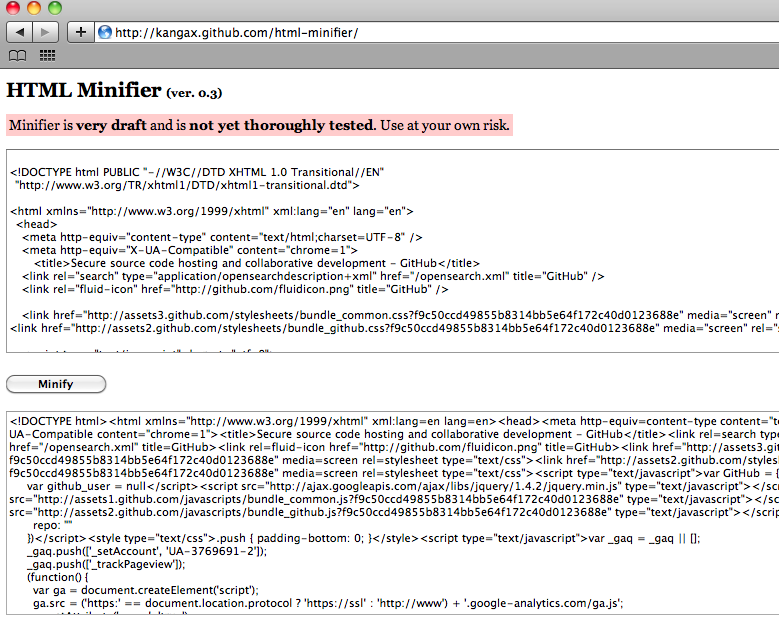
How it works
Parser
At its core, minifier relies on HTML parser by John Resig. John’s parser was capable of handling quite complex documents, but would sometimes trip on some of the more obscure structures. For example, doctype declarations were not understood at all. Whenever attribute name contained characters like “-” (e.g. as in “http-equiv”), parser would fail. There were also some defficiencies in regular expressions for matching comments and CDATA sections: newlines inside them were not accounted for, so multiline comments simply weren’t matched. CDATA sections and comments inside elements with CDATA content model (e.g. SCRIPT and STYLE) were getting stripped for no apparent reason.
All of these are now fixed.
Minifier
Minifier is a very small “wrapper” on top of parser. As of now it’s only about 250 LOC. It takes input string and configuration object; passes this input string to parser, and builds final output according to specified options.
For example, we can tell it to remove comments:
  var input = '<!-- foo --><div>baz</div><!-- bar\n\n moo -->';
  minify(input, { removeComments: true }); // '<div>baz</div>'
or to collapse boolean attributes:
  var input = '<input disabled="disabled">';
  minify(input, { collapseBooleanAttributes: true }); // '<input disabled>'
Test suite
One of the goals I had for this little project was to have a robust test suite. HTML minifier is fully unit tested with ~100 tests at the moment. This has few benefits: anyone can change, tweak or add things without worrying to break existing functionality. It takes literally seconds to tell if script is functional in certain browser (or even in non-browser implementation, such as node.js on a server)—simply by running a test suite. Finally, tests can serve as documentation for how minifier handles some of the edge cases.
Lint
While working on minifier, I realized that oftentimes the most wasteful part of the markup is not white space, comments or boolean attributes, but inline styles, scripts, presentational or deprecated elements and attributes. None of these can be simply stripped, as that could affect state of the document and is just too obtrusive. What can be done, however, is reporting of these occurences to the user. HTMLLint is even a smaller script, whose job is exactly that—to log any deprecated or presentational elements/attributes encountered during parsing. Additionally, it detects event attributes (e.g. onclick, onmouseover, etc.). The rationale for this is that moving contents of event attributes to external script allows to take advantage of resource caching.
Options
Before we begin, it's important to understand that minifier parses documents as HTML, not XHTML. This allows to employ such optimizations as "remove optional tags and quotes", "collapse boolean attributes", etc. Note that almost none of the options affect document validity, as per HTML 4.01. XHTML support might be added in the future, but considering that in context of pubilc web it's mostly pointless at the moment, I see little reason in doing so. Besides, minifying XHTML documents (given that they're actually served to clients properly, with "application/xhtml+xml") doesn't reduce size as much as if they were HTML.
The following is a list of current options in minifier. It is far from being exhaustive, and will most likely be extended in a future. Let’s look at each one of them quickly:
Remove comments
  var input = '<!-- some comment --><p>blah</p>';
  var output = minify(input, { removeComments: true });

  output; // '<p>blah</p>'
This one should be self-explanatory. Passing truthy removeComments tells minifier to strip HTML comments. Note that comments inside elements with CDATA content model, such as SCRIPT and STYLE, are left intact (but see next option).
  var input = '<script type="text/javascript"><!-- some comment --></script>';
  var output = minify(input, { removeComments: true });

  output; // '<script type="text/javascript"><!-- some comment --></script>'
Remove comments from scripts and styles
When this option is enabled, HTML comments in scripts and styles are stripped as well:
  var input = '<script type="text/javascript"><!--\n alert(1) --></script>';
  var output = minify(input, { removeCommentsFromCDATA: true });

  output; // '<script type="text/javascript">alert(1)</script>'
It's worth pointing out that there's a slight difference in the way HTML comments are treated inside SCRIPT and STYLE elements. In scripts, comment start delimiter ("<!-<span></span>-") tells parser to ignore everything until newline:
  <!-- alert(1); // alert never happens!
  <!--
  alert(2); // but this one does!
  // "<!--" acts as a single-line JS comment ("//").
In styles, however, "<!--" is simply ignored when it's present in the beginning of input (I haven't tested what happens in other parts of a stylesheet). Contrary to script behavior, anything that follows "<!--" still remains present:
  <!-- body { color: red; } -->

  /*  treated as:
      body { color: red; }
  */
Explanation of why you might want to strip comments.
Remove CDATA sections
This option removes CDATA sections from script and style elements:
  var input = '<script>/* <![CDATA[ \n\n */alert(1)/* ]]> */</script>';
  var output = minify(input, { removeCDATASectionsFromCDATA: true });

  output; // '<script>alert(1)</script>'
Explanation of why you might want to do this.
Collapse whitespace
This options collapses white space that contributes to text nodes in a document tree. For example:
  var input = '<div> <p>    foo </p>    </div>';
  var output = minify(input, { collapseWhitespace: true });

  output; // '<div><p>foo</p></div>'
It doesn’t affect significant white space; e.g. in contents of elements like SCRIPT, STYLE, PRE or TEXTAREA.
  var input = '<script>    alert("foo     bar")</script>';
  var output = minify(input, { collapseWhitespace: true });

  output; // '<script>alert("foo     bar")</script>'

  input = '<textarea>     x x   x </textarea>';
  output = minify(input, { collapseWhitespace: true });

  output; // '<textarea>     x x   x </textarea>'
Now, it’s worth mentioning that this modification can have side effects, and significantly change document representation.
For example, markup like <span>foo</span> <span>bar</span> is usually displayed as “foo bar” in browsers, with one space character in between two words. White space in markup is represented as text node in document tree. This text node’s value is a white space (e.g. U+0020), and as long as two adjacent elements are inline-level—as they are in this example—it is this white space that contributes to a gap in between “foo” and “bar”. As soon as we remove that white space (i.e. changing markup to <span>foo</span><span>bar</span>), representation changes from “foo bar” to “foobar”.
There are two ways to work around this issue.
First one is not to rely on such white space for document representation, and instead style elements to have margins and paddings as needed. In previous example, this could have been: <span class="foo">foo</span><span>bar</span> (where foo class would be declared with, say, margin-right: 0.25em;). At first, this might seem like an overkill. After all, adding class seems to defeat the purpose, resulting in larger output, when compared to a version with just one white space character. However, depending on a context, giving few elements a class for styling purposes, and then stripping white space from the entire document, can result in a smaller output.
Second option is to never fully remove white space characters, and instead always collapse them to one white space character. HTML 4.01 is actually specified to do just that, so there’s no harm in doing it upfront. Because of this, the following 2 snippets should render identically:
<span>foo</span>

   <span>bar</span>
and:
<span>foo</span> <span>bar</span>
...with one space in between “foo” and “bar”. Note how in first case, there’s an entire sequence of white space characters (including line breaks).
This second option—collapsing to one white space—has not yet been added to minifier.
Another noticeable effect white space removal can have on a document is related to CSS white-space property. As I mentioned earlier, by default, adjacent sequences of white space in most of the elements collapse into one space character. But white-space property changes it all. Some of its values result in different collapsing behavior. white-space: pre, for example, makes whitespace render exactly as it occurs in a markup.
As a result, snippet like this:
<span style="white-space:pre;"> foo bar</span>
foo bar
As of now, minifier doesn’t respect space-preserving white-space values (i.e. “pre” and “pre-wrap”). It doesn’t even understand them. Unfortunately, computing elements’ styles and determining their white-space values would be just way too complex and impractical [1]. On a bright side, it seems that white-space property is not used very often. In a future, it should be possible to add an option to minifier for specifying a way to prevent certain elements from having their content collapsed. A filtering can be based on a class, a simple selector, or maybe even by parsing element’s style attribute.
Collapse boolean attributes
HTML 4.01 has so-called boolean attributes—“selected”, “disabled”, “checked”, etc. These may appear in a minimized (collapsed) form, where attribute value is fully ommited. For example, instead of writing <input disabled="disabled">, we can simply write—<input disabled>.
Minifier has an option to perform this optimization, called collapseBooleanAttributes:
  var input = '<input value="foo" readonly="readonly">';
  var output = minify(input, { collapseBooleanAttributes: true });

  output; // '<input value="foo" readonly>'
A potential caveat here is that if you target elements by attribute name and value, things might break after applying this optimization. Granted, this kind of case seems rather unreal, but here’s an example. If we had these rules:
  input[disabled] { color: red }
  input[disabled="disabled"] { color: green }
  input:disabled { color: blue }
and markup like <input disabled="disabled">, then after transforming it to <input disabled>, second rule—input[disabled="disabled"]—would stop matching an element. First and third ones, however, would still work as expected. I can’t imagine why someone would use this second version, and you probably won’t ever stumble upon issues like these, but it’s good to be aware of them.
Remove attribute quotes
By default, SGML (which HTML originates from) requires that all attribute values be delimited using either double or single quotes. But in certain cases—when attribute values contain a specific set of characters—quotes can be omitted altogether. Note that HTML specification recommends to always use quotes. There’s also an interesting explanation of why always quoting is a good idea by Jukka Korpela (although none of the dangers he’s talking about apply here). Please, use this optimization with care.
Relevant option is removeAttributeQuotes, and it tells minifier to omit quotes when it is safe to do so:
  var input = '<p class="foo-bar" id="moo" title="blah blah">foo</p>';
  var output = minify(input, { removeAttributeQuotes: true });

  output; // '<p class=foo-bar id=moo title="blah blah">foo</p>'
Remove redundant attributes
Some attributes in HTML 4.01 have default values. For example, input’s type attribute defaults to “text” and form’s method—to “get”. When enabling corresponding option in minifier (removeRedundantAttributes), these default attribute name-value pairs get stripped from the output.
There are also few other redundancies that are taken care of as part of this optimization.
One of them is removing deprecated language attribute on SCRIPT elements. It was among markup smells I mentioned recently. Another one is coexisting “name” and “id” attributes on acnhors. And finally, redundant “javascript” labels in event handlers.
Use short doctype
This optimization is the only one affecting document validity. That is if document is defined to be anything but HTML5 (such as HTML 4.01). When useShortDoctype option is enabled, existing doctype is replaced with its short (HTML5) version—<!DOCTYPE html>. As mentioned before, this replacement is generally pretty safe, but you should decide for yourself if this is something worth doing.
Remove empty (or blank) attributes
The corresponding option is removeEmptyAttributes, and when enabled, all attributes with empty values are simply removed from the output. This includes blank values as well—those consisting of white space only.
  var input = '<p id="" STYLE=" " title="\n" >foo</p>';
  var ouptut = minify(input, { removeEmptyAttributes: true });

  output; // <p>foo</p>
Note that not all “empty” attributes are removed. For example, both “src” and “alt” attributes are required on IMG elements, so we can’t remove them, even if they’re empty. Right now, only core attributes (id, class, style, title), i18n ones (lang, dir) and event ones (onclick, ondblclick, etc.) are considered “safe” for removal.
The caveat here is that, similar to “collapse boolean attributes” option, this change can affect certain style or script behavior. For example, you might want to target all elements with class attribute—*[class] { ... }. This will apply to elements with empty class, such as <p class="">bar</p>, but obviously not to those without—<p>bar</p>.
This might not be a big issue, but take it into consideration.
Remove optional tags
Some elements in HTML 4.01 are allowed to have their tags omitted. Optional tags are either end one (e.g. </td>) or both—start and end ones (e.g. <tbody> and </tbody>). Note that start tag can never be optional on its own.
Corresponding option in minifier is removeOptionalTags. Currently, it only strips end tags of HTML, HEAD, BODY, THEAD, TBODY and TFOOT elements. I don’t fully understand the process of creating document tree from “unclosed” markup, so I’m not sure when it’s safe to omit tags like </p>.
For example, I can see how removing BODY start tag can have side effects. Let’s say we have a markup like this (with omitted HTML 4.01 doctype, for brevity):
  <head>
    <title>x</title>
  </head>
  <body><script type="text/javascript"></script>
    <p>x</p>
    <script type="text/javascript">
      document.write(document.body.childNodes[0].nodeName);
    </script>
  </body>
and the same markup with HEAD and BODY tags removed:
  <title>x</title>
  <script type="text/javascript"></script>
  <p>x</p>
  <script type="text/javascript">
    document.write(document.body.childNodes[0].nodeName);
  </script>
Note that second version is a perfectly valid document. It just has start and end tags of HEAD and BODY elements omitted. Now what seems to happen here, in a second version, is this:
Browser starts parsing, encounters TITLE tag, and given lack of starting HTML and HEAD tags, creates both elements implicitly (first, HTML, then HEAD as its immediate child). It then continues parsing, up until it stumbles upon P element, which, as per DTD, can not be a child of HEAD. Browser is therefore forced to implicitly close HEAD element, start BODY element, and continue parsing further. P element becomes first child in BODY, and SCRIPT element becomes last child in HEAD.
Now, if we were to display both of these documents, first one would alert “SCRIPT” and second one—“P”. This is becase in original version, SCRIPT element is defined explicitly to be a child of BODY, and in modified version—child of HEAD (due to the way parsing works). The behavior of two documents is therefore not identical. We've got a "problem".
Just like with previous “gotchas”, I’m not sure how likely this type of scenario is to appear in real life. From what I can see, the only other element (besides SCRIPT), allowed as child of both—HEAD and BODY, is OBJECT. As for the future, it should be possible to make minifier strip other optional tags as well. But only in safe scenarios.
It’s also worth mentioning that unclosed elements can result in slightly slower parsing times. Unfortunately, there are no extensive benchmarks done on this topic, and results seem to vary across browsers.
Remove empty elements
This optimization is probably one of the most obtrusive ones, which is why it is disabled by default. Think of it as an experimental addition, and employ with great care. There are dozens of valid use cases for occurence of empty elements in a document. They can be used as placeholders for content inserted later with scripting; or for presentational purposes, such as to implement rounded corners, shadows, float clearing, etc. There are probably other cases, which I can’t think of at the moment.
When enabled, minifier simply removes all elements with empty contents (but not those with empty content model, such as IMG, LINK, or BR).
For example:
  var input = '<p></p>';
  var output = minify(input, { removeEmptyElements: true });

  output; // ''

  input = '<div>blah<span></span></div>';
  var output = minify(input, { removeEmptyElements: true });

  output; // '<div>blah</div>';
There are few things to be aware of. First of all, elements containing only other empty elements are not removed. For example:
  var input = '<div><div><div></div></div></div>';
  var output = minify(input, { removeEmptyElements: true });

  output; // '<div><div></div></div>'
Note how only inner DIV element—the one with actual empty contents—is removed.
Second of all, only truly empty string is considered an empty content. This does not include spaces, newlines, or other white space characters:
  var input = '<p> </p>'; // note one space character in between
  var output = minify(input, { removeEmptyElements: true });

  output; // '<p> </p>'
Also note that comments are parsed as separate entities and so don’t affect “emptiness” of elements:
  var input = '<p><!-- comment --></p>';
  var output = minify(input, { removeEmptyElements: true });

  output; // ''
As with other optimizations, some of these limitations will likely be removed in the future.
Validate input through HTML lint
This option simply toggles linting. You can create new HTMLLint object and pass it to minifier. During minification, lint object silently logs all "suspicious" activity. It exposes populate method, which accepts element and inserts its log into this element:
  var lint = new HTMLLint();
  minify(' some input... ', { lint: lint });

  lint.populate(document.getElementById('someElement'));
Field-testing
So how does minifier stand against real-life markup? Let’s take a look at minification results of some of the popular websites (note that when gzip'ing documents, 6th level of compression (default) was used):
Amazon.com
Original size: 217KB (35.8KB gzipped)
Minified size: 206.6KB (34.3KB gzipped)
Savings: 10.4KB (1.5KB gzipped)
Minifying home page of amazon.com saves about 10KB with uncompressed document, and only 1.5KB with compressed one. What’s interesting is that humongous 217KB is actually a result of miriad of inline styles and scripts scattered throughout a document. Replacing those with external scripts would be the best optimization. Getting rid of occasional style attributes would help too.
Digg.com
Original size: 82KB (18.2KB gzipped)
Minified size: 74.9KB (17.2KB gzipped)
Savings: 7KB (1KB gzipped)
On digg.com, reduction is slightly smaller—7KB (1KB gzipped). The markup is not as cluttered as on amazon, but still has smells: inline scripts (and unnecessary comments in them), deprecated attributes, anchors defunct without scripting, etc. The benefits of minification are rather small here.
Ajaxian.com
Original size: 177.6KB (32.4KB gzipped)
Minified size: 157.3KB (29.7KB gzipped)
Savings: 20.3KB (2.7KB gzipped)
Trying out home page of ajaxian.com, we see a difference of ~20KB—even better reduction in size. And again, compressed documents show savings of only 2.7KB. Speaking of compression, ajaxian.com shamelessly serves its 177KB-large document uncompressed. There’s also some redundant markup, like unnecessary ’s, excessive style attributes, lots of comments, and few inline scripts. Removing all of those, and turning on compression would be an ultimate optimization.
Linkedin.com
Original size: 128.8KB (19.8KB gzipped)
Minified size: 89.4KB (17.1KB gzipped)
Savings: 39.4KB (2.7KB gzipped)
linkedin.com surprises with savings of almost 40KB (!) after minification. Looking at the source, we see that large number is explained by excessive amount of whitespace. This is a good example of how carelessly used whitespace can add up to huge number like this. And again, gzip saves the day; minifying compressed document reduces it only by 2.7KB.
ECMAScript language specification
Original size: 703KB (122.5KB gzipped)
Minified size: 572KB (106.4KB gzipped)
Savings: 131KB (16KB gzipped)
Large static documents is where HTML minification truly shines, and HTML version of ECMAScript (3rd ed.) language specification is a clear demonstration of it. Minifying document results in savings of 131KB (!) for an uncompressed document, and 16KB for compressed one. Since document is served statically, there’s hardly any reason not to apply minification here.
Cost and benefits
It’s pretty obvious that the best candidates for html minification are large static documents. Or just static documents—FAQ’s, standalone articles, etc. Anything that can’t be compressed (e.g. if there are not enough access rights, to enable gzip on a server) would benefit from minification as well. Even when serving gzipped content, it’s worth remembering that not everyone is getting gzip. So clients that are being sent gzipped content could receive 2-3KB smaller file, whereas those receiving uncompressed content could end up with files up to whopping 10-20KB smaller than original ones.
One of the biggest problems I see, when it comes to dynamic minification, is the possibility of error. The core of the issue is that minification relies on parsing, and parsing HTML is a pretty tricky business. Even though minifier applies a strict set of rules—removing quotes and optional tags only when it is absolutely safe to do so, a single misplaced character in start tag can trip parser and wreak havoc on an entire document. This is especially relevant when there’s an inclusion of user-generated content.
As an example, browsers usually understand empty end tags (allowed in HTML)—<p> test </>, but parser, which minifier is based on, would immediately choke here and stop. Another example is attributes containing “weird” characters—<a href="http://example.com""> test </a> (note trailing quote after an attribute). Many browsers happily parse this element, ignoring trailing quote. But parser, once again, falls short and bails out.
It’s certainly possible to tame errors and simply output original, uncompressed document. But this brings us to another downside—time spent on minification. Even when errors are not an issue, there’s an actual overhead of parsing and processing document tree. Minifying home page of amazon.com in pretty speedy nightly webkit, for example, takes exactly 1 second. Most of that time is consumed by parsing. 1 second is quite a lot. An acceptable time for real-time minification would be somewhere around 50-100ms. This problem can be mitigated by optimizing parser, or porting script to be executed in a faster environment (v8 on a server?).
Curiously, Opera 10.50 beta (on Mac OS X) managed to beat WebKit and completed this task almost twice faster (~500ms). Unfortunately, this version suffers from some bugs in regex matching, and fails half of the test suite. Hopefully, those issues will be resolved in later revisions.
Another interesting performance observation was with V8 engine. When testing with version 1.3.x, the time it took to minify amazon.com home page was 0.6 secs. However, version 2.1.2.6 (currently latest stabe) performed same task in excruciatingly long 2 seconds.
Future
I can think of many other things to improve in minifier. Unfortunately, I don’t have much time to work on it. The project is licensed under MIT, and is free for use/modification by anyone interested. Test suite should make collaboration easy. There’s a short todo list on a bottom of project page. Among other things, it lists some of the known bugs.
As always, any questions, corrections, and suggestions are very much welcomed.
Enjoy.
1. “white-space: pre” declaration could be part of a rule from within an extrnal stylesheet; getting computed style would require downloading, parsing and analyzing every single stylesheet linked from the document (or imported from within another stylesheet).